

Compute
Back Up Your Data
Archive the folders you care about from a running instance to Grafilab storage, then download them as a .tar file that outlives the rental.
Prerequisites
Section titled “Prerequisites”- An instance whose card reads Active on My Instance.
- The Manage compute permission (permissions table).
- Enough time before Expire at for the archive to build and upload.
What Backup does
Section titled “What Backup does”Backup on the instance card opens a dialog with two tabs, New Backup and Backups. It builds an archive of the paths you pick on the node, uploads it to Grafilab storage, and gives you a download link.
It is download-only: nothing puts an archive back on a machine for you. To return files to an instance, download the archive and copy it up again with scp — see Copy files in and out.
Create a backup
Section titled “Create a backup”-
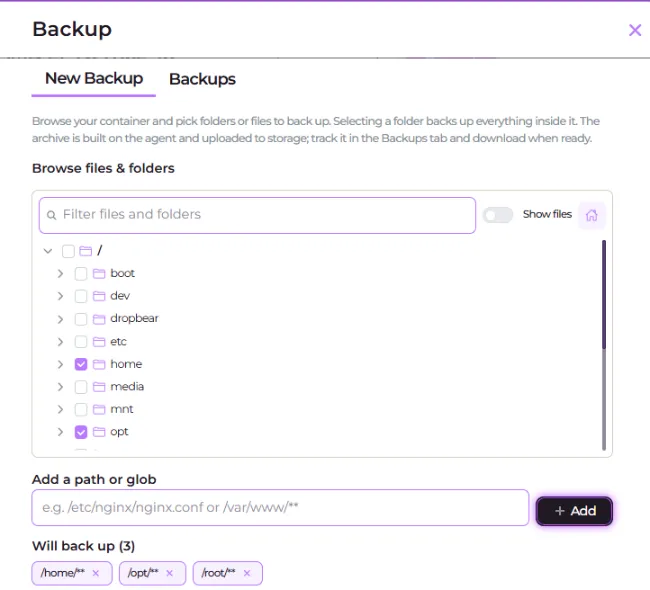
On the instance card click Backup. The dialog opens on New Backup: “Browse your container and pick folders or files to back up… The archive is built on the agent and uploaded to storage; track it in the Backups tab and download when ready.”
-
Under Browse files & folders, tick the folders and files you want. The tree starts at the container’s home directory —
/root, or/home/<user>on images with a named user. Ticking a folder takes everything inside it. -
For anything not in the tree, type an absolute path or glob into Add a path or glob — placeholder
e.g. /etc/nginx/nginx.conf or /var/www/**— and click Add. Relative paths are rejected. -
Check the Will back up (n) pills — every selection, tree or glob, lands there. While it reads “Nothing selected yet — tick items above or add a path.” the button does nothing.
-
Optionally fill Exclude patterns (Optional): “One per line. Absolute globs (e.g.
/var/www/cache/**) or bare filename patterns (e.g.*.log).”/root/.cache/***.log*.ckpt -
Click Create Backup. You get “Backup task created. Track its progress in the Backups tab.”
Track and download
Section titled “Track and download”-
Open the Backups tab. Tasks are listed newest first and the list polls itself while any of them is still running.
-
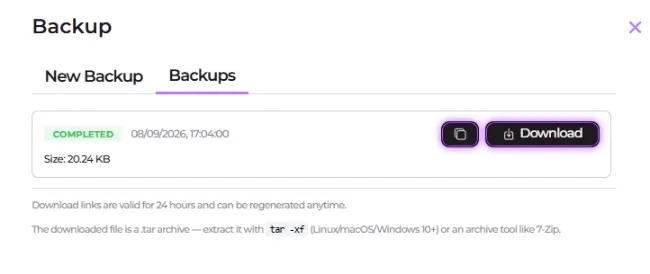
Watch the status column: Starting…, then Backing up…, then Uploading with a byte counter (
x / y (n%)), ending at Completed in green with a Size, or Failed in red with the error. Pending shows for a state the console does not recognise. -
On a Completed row, click Download for the file, or Copy download link to paste elsewhere. Each click mints a fresh link: “Download links are valid for 24 hours and can be regenerated anytime.”
-
Extract the archive locally. “The downloaded file is a .tar archive — extract it with
tar -xf(Linux/macOS/Windows 10+) or an archive tool like 7-Zip.”Terminal window tar -xf backup-<id>.tar -C ./backup
Limits
Section titled “Limits”- One at a time per instance. Starting a second gives “A backup is already running for this instance. You can start a new one once it finishes.”
- The job dies with the container. Start well before Expire at; a large upload is not instant, and an expired rental takes any unfinished archive with it.
- Download only. Putting files back is a manual
scpupload. - Backups need a reachable, agent-managed node. The dialog reports the specific failure — an invalid contract, browsing not supported on this machine, the machine not accessible, no include paths, a non-absolute include path, a bad exclude pattern, a backup already in progress, or a task that has not completed or uploaded yet.
Nothing persists past the rental
Instances have no persistent volume. Anything you write at runtime — downloaded models, installed packages, notebooks, outputs — lives in the container for the lifetime of the rental and is gone when it expires. Before Expire at, back up the folders you care about to Grafilab storage and download the archive.