

Account
Settings & Profile
Your sign-in credentials, billing country and business details live on one page with two tabs.
Where settings live
Section titled “Where settings live”Open My Settings in the sidebar. The page is titled Settings and has two tabs: General and Team.
While you are acting as somebody else’s account, this page shows only the Team tab, labelled “alice — Team”. Switch back to your own account to reach General. See Switch between accounts.
General
Section titled “General”The General tab holds the fields that identify and bill you.
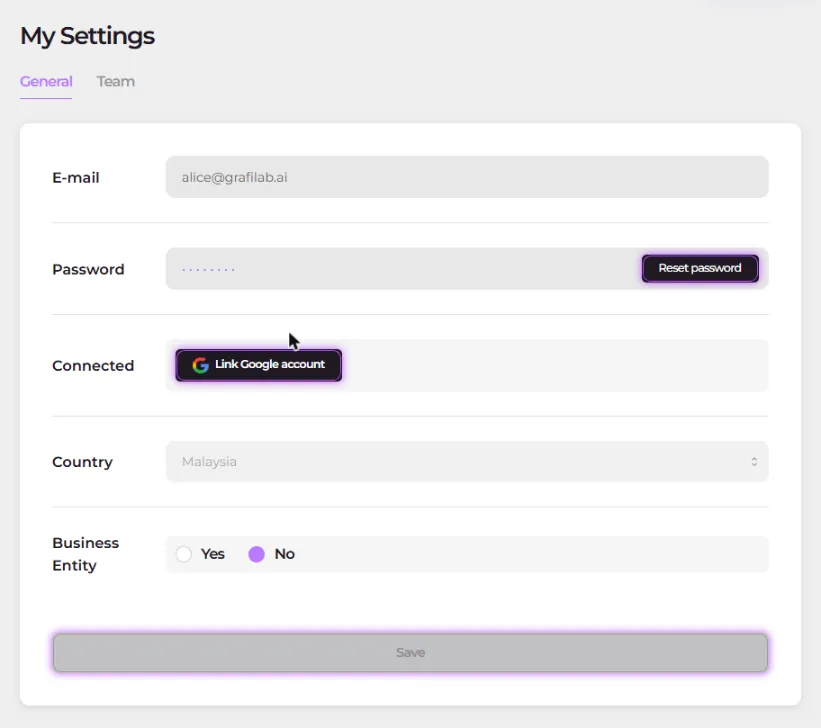
- E-mail — the address you sign in with, shown read-only.
- Password — opens the Change Password dialog (steps below).
- Connected — reads as linked, or offers Link Google account if you signed up with email and password.
- Country — the country behind your wallet currency, editable from the full country list; the currency rules are on Credits & Billing.
- Business Entity — a Yes / No choice. Choosing Yes reveals Business Registration Name, Business Registration No. and Business Address.
Save commits the tab.
To change your password:
-
On the General tab, next to Password, open Change Password.
-
Fill Old Password, New Password and New Confirm Password. The new password needs at least 8 characters and at least one digit, one lowercase letter, one uppercase letter and one special character.
-
Submit the dialog. The note in it applies: “For security, you will be signed out once your password is changed and will need to sign in again.” Sign in again with the new password.
Log out
Section titled “Log out”Logout sits in the console header on every page. It asks “Are you sure you want to log out of your account?” before it signs you out.